
Time blocks and hours
A time block gives a task its time on your day. ALT adds up the blocks against the hours you have and shows when a day or week runs over.
Put a task on the timeline
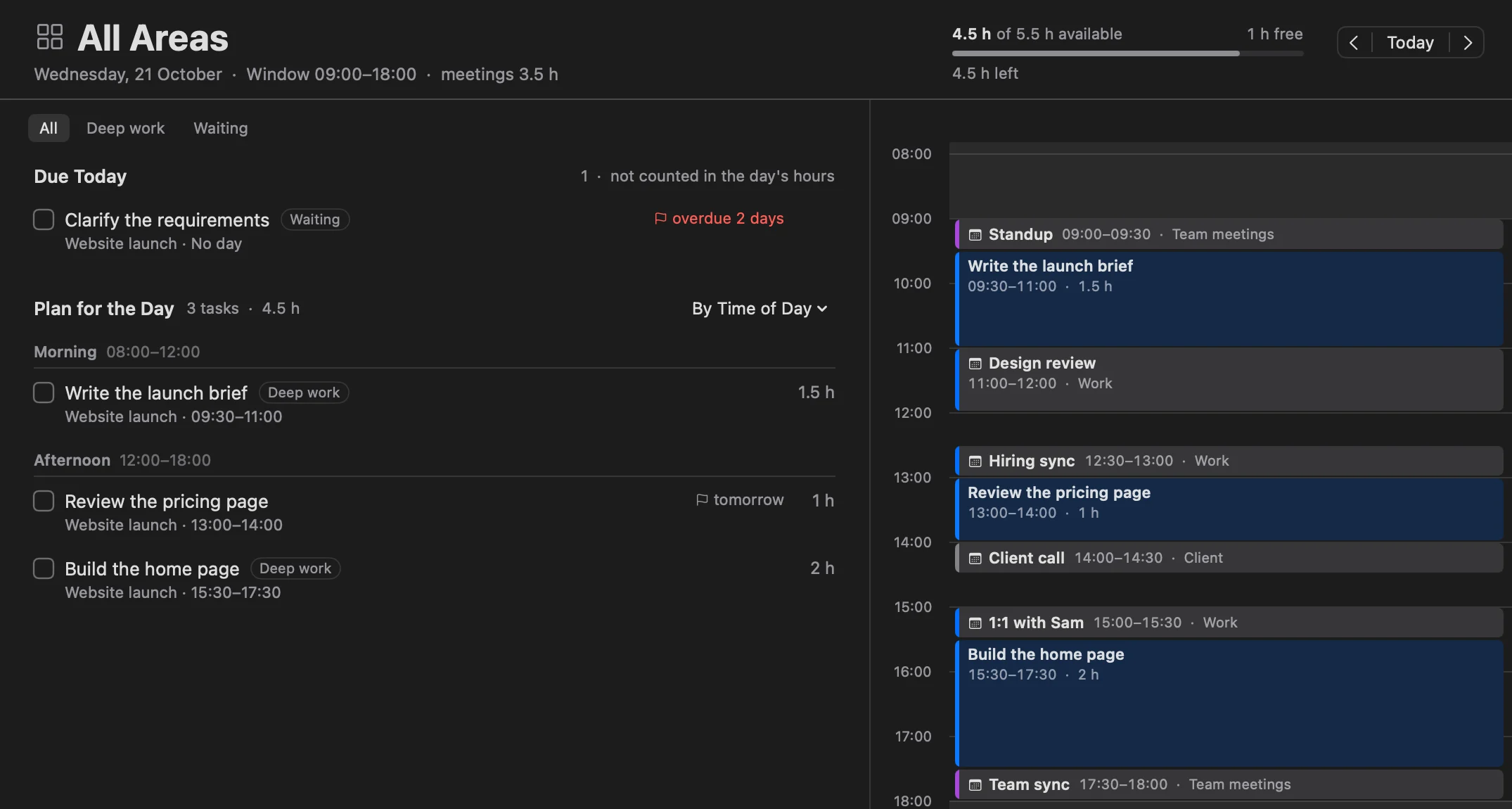
The Day has the plan for the day on the left and the timeline on the right. Drag a task from the plan onto the timeline: a dashed block follows the pointer with its time, such as 18:00‑20:00 · 2 h, and the task lands exactly there. Blocks move in 15-minute steps.
You can also open a task and use Add Time Slot under Time slots, then type the times.
One task, several blocks
A long task can take an hour before a meeting and two after it. Drag it onto the timeline again or add another time slot. Each block says which part it is, such as block 1 of 2, and the task stays one task in its project.
Change a block
- Drag a block to move it. Pull its top edge to change the start, or its bottom edge to change the end. The edges show when you hold the pointer over the block.
- Right-click a block for Done, Mark as Not Done, Show in Project and Delete Block. ⌫ deletes the selected block too.
- Deleting a block frees its time; the task stays in the plan. ⌘Z undoes any of these.
Overlaps
When blocks overlap, the timeline shows how many. Click the count to end one block where the next begins, or keep them as they are. A task row also says when its block overlaps a meeting.
Blocks of tasks
Some work is a pile of small tasks: email, reviews, errands. Give them one block instead of a slot each. Drag an area or a project from the sidebar onto the Day, or draw time on the timeline and pick one in the menu.
- The block holds its tasks as a stack, without times of their own. Drop tasks into it, or add them in its card.
- The day's hours count the block's length, and its header turns red when its tasks need more.
- Move the block, on the Week too, and its tasks go with it.
- Claude Code, Codex and the chat can propose blocks too. Nothing changes until you press Apply.
Blocks of tasks can also go to your calendar. See Calendars and meetings.
Tasks without a time
Tasks in the plan for the day don't need a block. Grouped by time of day (View → Group By), they sit in Morning, Afternoon and Evening; drag a task into another part of the day to move it there.
Busy time
Busy time is not a task: it takes hours out of the day and the week, like a meeting. Drag on an empty part of the timeline to mark it, then click it to name it or change its times. Meetings from your calendars count as busy time on their own; see Calendars and meetings.
Working hours
Open the Week and press Hours & Busy Time. The hours belong to you and are shared by all projects.
- Usual week: the hours of each weekday. Until you change them, Monday to Friday, 08:00‑20:00, with weekends off.
- Exceptions: "+ Exception for a date" changes the hours of one day or makes it a day off.
- Busy this week: the busy time you marked, and "+ Mark busy time".
- Day timeline: the first and last hour the Day shows. It doesn't change your hours.
How ALT counts
A day's available hours are its working window minus the meetings and busy time inside it. The Day's header shows the planned hours of the hours available, and how much is free or how much it's over by. A task with neither an estimate nor a block isn't counted, and the header says how many such tasks there are.
The Week adds up each day and the whole week; a day or week that runs over turns red and says by how much.
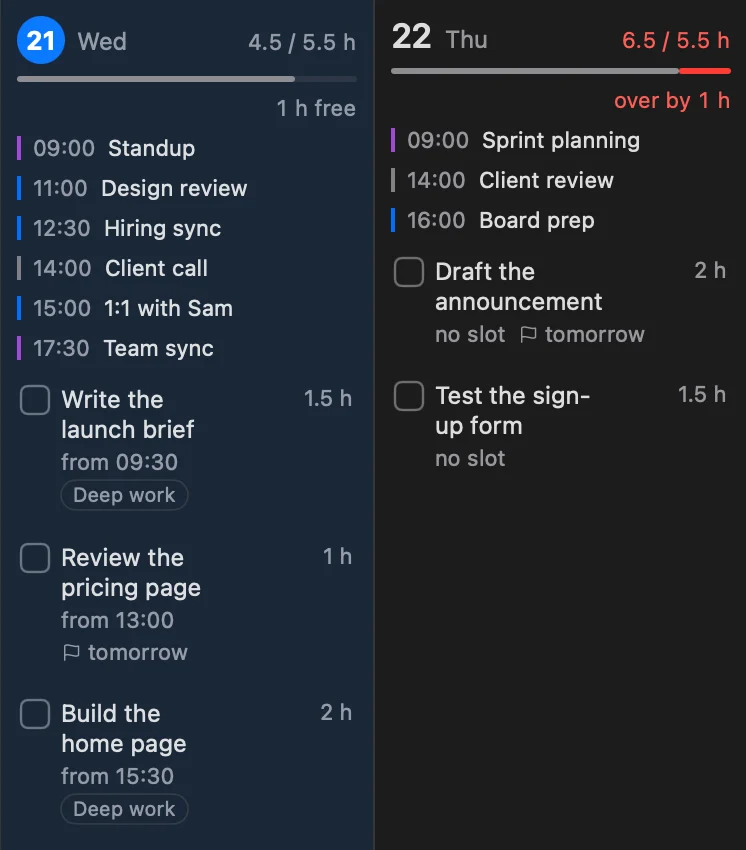
The Month shows how many hours are planned in it, and the Year shows how many projects run each month.
Estimate against actual time
A finished task shows how long its blocks took, next to your estimate: 2.3 h · est. 1 h. You see it in Completed, on the Day, on the Week and in the weekly review.