
Calendars and meetings
ALT shows the meetings from your calendars on the same timeline as your tasks and takes them out of your available hours.
Where meetings come from
ALT reads the Calendar app on your Mac. Any account added there shows up in ALT: iCloud, Google, Exchange and Outlook. If a calendar is missing, add its account to Apple's Calendar app first.
Give ALT access
- Open Settings → Calendars.
- Press Allow Access... and confirm in the system window.
ALT asks only when you press the button, never at launch. If you refused before, the button opens System Settings → Privacy & Security → Calendars, where you can turn ALT on.
Without access, ALT works the same: mark busy time by hand on the Day's timeline.
Choose what counts as busy
Settings → Calendars lists your calendars by account. "Count as busy" decides which ones take time out of your hours. At first, calendars you can edit count, and read-only ones, like holidays, don't.
- Ignore all-day events is on at first: an all-day event doesn't take your hours.
- Ignore declined events and events marked "Free" is on at first too.
All-day events of the calendars turned on show above the Day's timeline, even when they don't count as busy. To see birthdays or holidays, turn on their calendar.
Busy time you mark by hand stays. If it matches a meeting, the hours count once.
A meeting's card
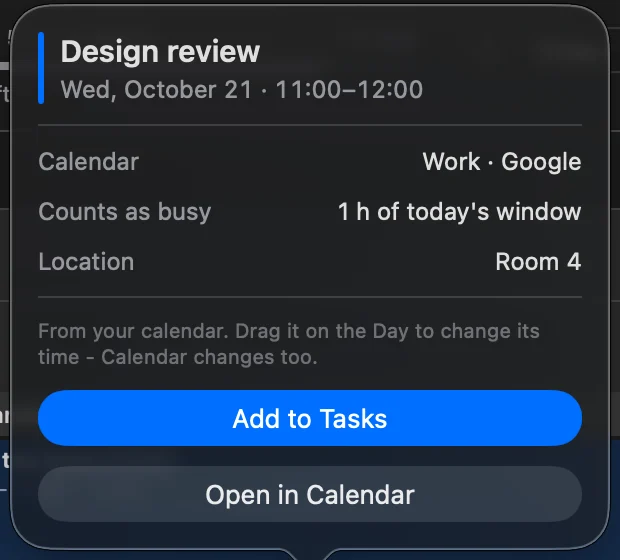
Click a meeting on the Day. The card shows its calendar, how much of the day's working window it takes, and its location, with Open in Calendar and Add to Tasks.
Move a meeting
Drag a meeting to another time on the Day, or pull its top or bottom edge. It changes in your calendar too, and ⌘Z puts it back.
- A meeting with participants asks first: they'll see the new time, and your calendar may email them.
- A repeating meeting asks: Only This Meeting, or This and Following.
Some meetings show a small lock and say why they stay put: you're not the organizer, the calendar is read-only, or the meeting runs over several days. Change those in the Calendar app.
ALT changes a meeting only when you move it, and it doesn't delete meetings. A task's own time slots stay in ALT.
Blocks of tasks in your calendar
A block of tasks can show up in your calendar too, so the people who see it know you're busy. In Settings → Calendars → Task blocks, pick a calendar for each area. Its blocks go there as one busy event named after the area or project; the tasks themselves stay in ALT.
- Move or stretch the event in Calendar, and the block follows.
- Delete the event there, and the block goes. Its tasks stay in the day.
Turn a meeting into a task
Need to prepare, or want the meeting in a project? Choose Add to Tasks in its card, or right-click the meeting. It stays one block on the Day, now with a checkbox, and its hour still counts once.
- The task follows its meeting: move, rename or delete the meeting, in Calendar or on the Day, and the task changes too.
- When the meeting is over, the task is marked done. Settings → Calendars → "Mark done when a meeting ends" changes that: Always, Only with other participants, or Never.
- Next to each calendar in Settings → Calendars, choose the project its meetings go to as tasks.
Remove from Tasks, in the card's "···" menu, deletes the task and leaves the meeting.