
The assistant and your AI key
The chat plans and changes your day when you ask. It runs on your own AI key, and nothing changes until you press Apply.
Connect a key
In the beta, the chat runs on your own API key from one of three services: Anthropic, OpenAI or OpenRouter. Create a key in your account at that service, then:
- Open the chat with ⌘J or the button at the top right.
- Under "Connect a model for the chat", pick the service and paste the key.
- Press Connect. ALT checks the key with the service before it keeps it.
The same settings are in Settings → AI → In-app chat: Switch changes the service, Change or Remove the key, and Choose picks the model. The default is an inexpensive model: Claude Haiku 5.5 with Anthropic and OpenRouter, gpt-4.1-mini with OpenAI. Other model... takes any model name the service offers.
The key is kept in your Mac's keychain. Requests go from your Mac straight to the service you chose, without our server, and the service bills them at its own rates.
Ask it to plan
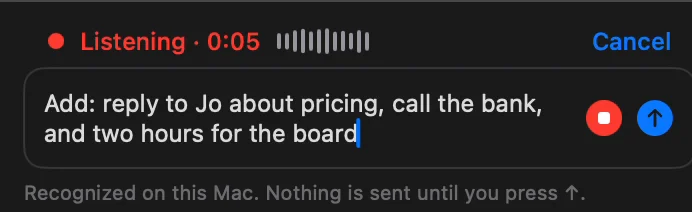
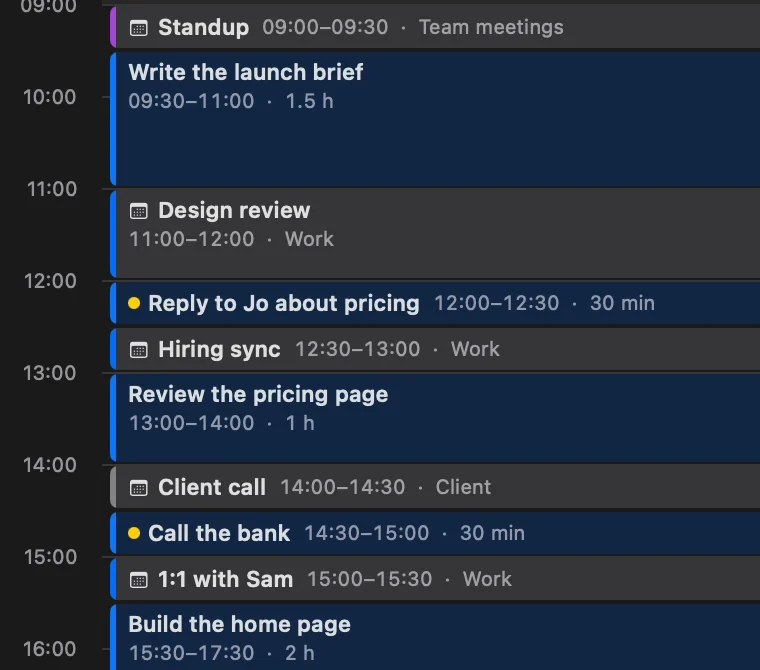
Type or dictate what's on your plate, or ask about the plan: "Thursday is overloaded, lighten it" or "What won't I finish this week?". The assistant gives new tasks an estimate and a time between your meetings, inside your working hours.
Apply, reject or undo
Changes come as a card: what changes, and what it does to the hours of the days and the week. Press Apply to make them, or Reject.
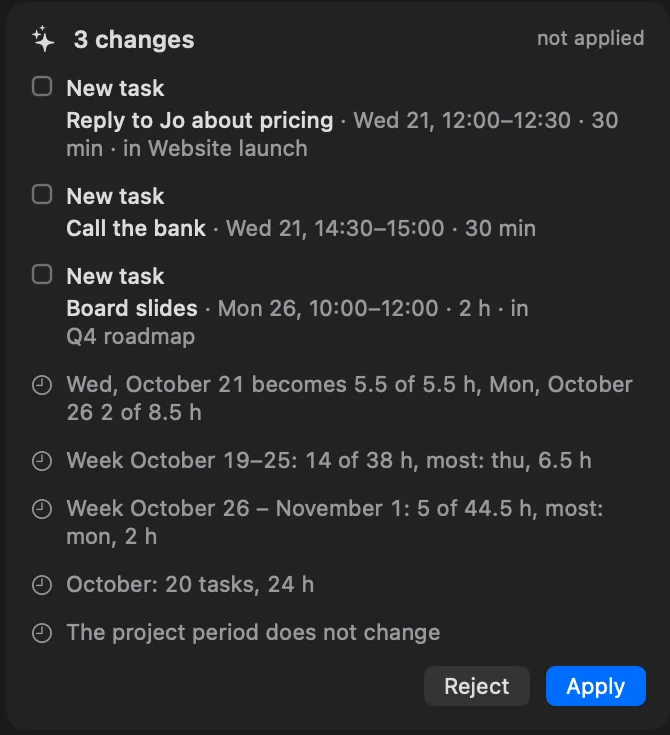
- Tasks the chat made or moved get a dot, and the list says "You have 1 new task" until you press OK.
- Undo Applied Changes in the chat brings back what the card changed.
- Settings → AI → Change History keeps the assistants' changes for 7 days; Undo Batch undoes any of them.
- If something changed after the proposal, that part isn't applied, and the card says why. Retry makes a new proposal and skips what was already applied.
What it can change
Almost anything you can change by hand:
- tasks: new ones, days, times, estimates, projects, order, Someday, done and not done;
- your working hours, days off and busy time;
- areas, projects and sections: create, rename, finish, delete;
- notes: read, create, rewrite and delete.
You can also ask it anything else, such as advice or a translation. Changes to the plan still come as a card.
What it sees
The line under the chat's header says what it sees, such as a project and a week. It gets the open screen and the plans related to it: tasks, working hours, busy time, meetings and notes. It reads a note in full only when your question needs it. Nothing is sent until you ask something.
Web search
With an Anthropic key, the chat can search the web: it shows "Searching the web" and puts its sources right after the facts. Click a source to open it. With an OpenAI or OpenRouter key there's no search, and the chat answers from what the model knows.
Dictation
Press Dictate in the chat's field and speak. Your speech is recognized on your Mac, and nothing is sent until you press ↑. The first time, macOS asks for the microphone and speech recognition. If your Mac has no speech model yet, ALT says so: turn on Dictation in System Settings → Keyboard to download it.
Turn it off
Use the switch on the In-app chat card in Settings → AI. The chat then says it's off, and nothing goes to the service.
Claude Code and Codex connect to ALT separately, without a key in ALT. See Claude Code and Codex.